What Is Audio Metadata and Why It Matters
Audio metadata explained — what it is, what's stored inside your files, and why it matters for music production, podcasting, DJing, and managing your library.
<!-- Meta Title: Audio Metadata Explained — What It Is & Why It Matters --> <!-- Meta Description: Audio metadata explained — what it is, what's stored inside your files, and why it matters for music production, podcasting, DJing, and managing your library. --> <!-- Suggested URL Slug: /blogs/audio-metadata-explained/ -->
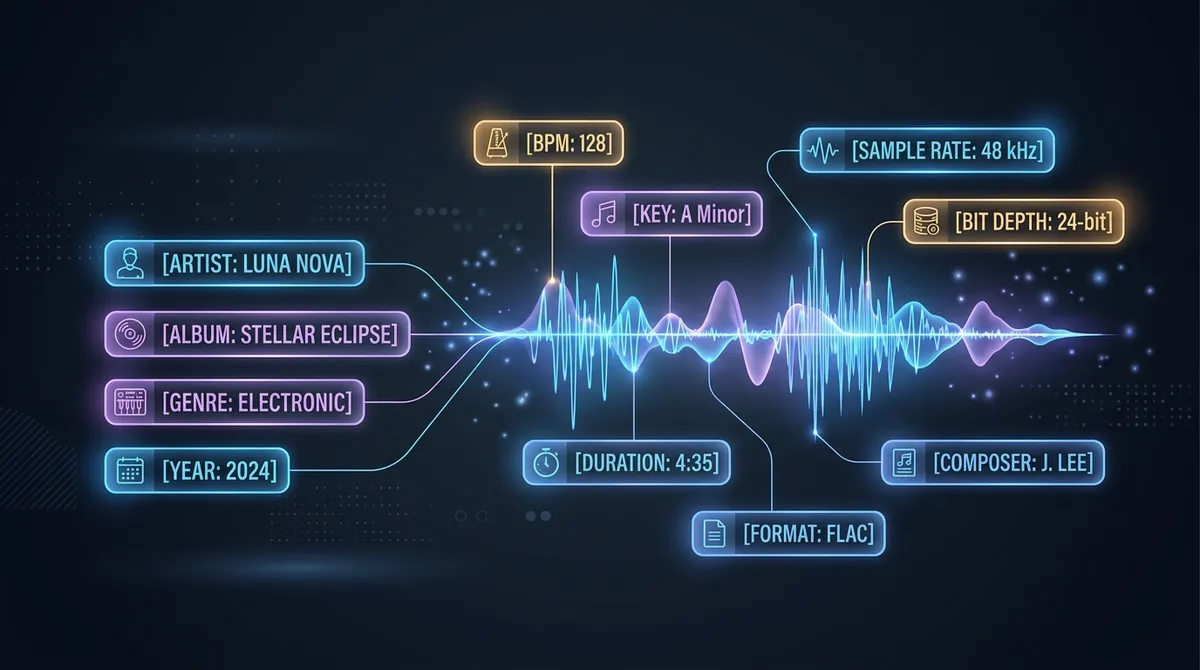
Every audio file you've ever played carries invisible information riding alongside the actual sound. That's metadata — data about data — and it's the reason your music player knows the song title, album art shows up on your lock screen, and your DJ software can detect a track's BPM without you analyzing it manually. Audio metadata explained in one sentence: it's everything your file knows about itself that isn't the waveform.
Most people never think about it until something goes wrong. A track shows up as "Unknown Artist" in iTunes. A podcast episode has the wrong chapter markers. You import fifty samples into Ableton and they're all named audio_final_v2(1).wav. Suddenly, metadata matters a lot.
The Two Layers: What's Actually Inside an Audio File
An audio file is really two things packed together. The first is the audio data — the actual samples that produce sound when decoded. The second is a container of metadata fields, and the amount of information stored there varies wildly depending on the format.
Think of it like a shipping box. The product inside is the audio. The label on the outside — sender, recipient, weight, contents, handling instructions — that's metadata. Some formats slap on a detailed label with every field filled in. Others barely have a return address.
Descriptive Metadata
This is the stuff most people actually interact with. Song title. Artist name. Album. Genre. Track number. Year. Album artwork. Lyrics. Comments. These fields exist so that humans and software can identify and organize files without having to listen to each one.
The ID3 standard (specifically ID3v2.4) is the most common container for this data in MP3 and AAC files. It supports over 80 defined fields, from the obvious ones like TIT2 (title) and TPE1 (lead artist) to niche entries like TBPM (beats per minute), TKEY (musical key), and TLAN (language). Vorbis Comments serve the same purpose for FLAC and Ogg Vorbis files, using a simpler key-value pair system that's more flexible but less standardized.
WAV files, historically, have been terrible at this. The original WAV specification from Microsoft and IBM (dating back to 1991) included a basic INFO chunk that supports fields like IART (artist) and INAM (title), but support across software is inconsistent. Some players read WAV INFO chunks. Many don't. If you've ever wondered why your WAV files show up as nameless blobs in media players while your MP3s display full album art and lyrics — that's why.
Technical Metadata
This is the information about the audio signal itself: sample rate, bit depth, channel count, codec, duration, bitrate. Your file doesn't need a tag for these — they're encoded into the file header and are readable by any software that understands the format.
A 16-bit/44.1 kHz stereo WAV file, for instance, has all of that information baked into its 44-byte RIFF header. The player doesn't look up the sample rate in a database; it reads byte 24 of the header and finds the value 44100 stored right there.
Technical metadata is almost never wrong because it's derived directly from the file structure. If your player says a file is 48 kHz and 24-bit, it is — there's no manual entry involved, no room for a typo.
Administrative and Rights Metadata
Copyright notices, licensing terms, ISRC codes (the unique identifiers assigned to individual sound recordings), UPC/EAN barcodes for albums. This layer is less relevant for casual users but critical for anyone distributing music commercially. Streaming platforms like Spotify, Apple Music, and Tidal rely on ISRC codes to match uploads to existing catalog entries and route royalty payments correctly.
A single wrong character in an ISRC code can mean thousands of plays going uncredited. Distributors like DistroKid, TuneCore, and CD Baby embed these codes into file metadata before delivery to streaming platforms.
Audio Metadata Explained by Format
Not all formats handle metadata equally. The differences are significant enough to affect which format you choose for a given workflow.
MP3 (ID3v2)
MP3 is the gold standard for metadata support. ID3v2 tags live at the beginning of the file (or, for ID3v1, the last 128 bytes) and can store embedded album art (JPEG or PNG, up to several megabytes), synchronized lyrics, chapter markers, and dozens of custom fields. Virtually every media player, phone, car stereo, and smart speaker on Earth reads ID3 tags correctly.
The downside is that MP3 is a lossy format. You're getting excellent metadata support paired with compressed, quality-reduced audio. For archival or production purposes, that's a trade-off.
FLAC (Vorbis Comments)
FLAC combines lossless audio compression with robust Vorbis Comment metadata. There's no fixed list of field names — you can create arbitrary key-value pairs, which makes it extremely flexible. Embedded artwork is supported through METADATA_BLOCK_PICTURE. Most desktop players (foobar2000, MusicBee, VLC) handle FLAC metadata well, though support on mobile and in-car systems can be spottier than MP3.
WAV (INFO / BWF / iXML)
Here's where things get messy. Standard WAV files use the INFO list chunk, which supports basic fields but has poor and inconsistent software support. The Broadcast Wave Format (BWF) extension adds a bext chunk with fields specifically designed for broadcast — origination date, time reference (for sample-accurate positioning in a timeline), coding history, and a 256-character description.
Pro Tools, Nuendo, and other professional DAWs read and write BWF metadata reliably. But consumer media players? Most ignore it entirely. And embedded album art in WAV files is a mess — there's no universally agreed-upon standard for it, so different software uses different approaches, and compatibility is a coin flip.
This matters if you're converting YouTube videos to WAV. The resulting WAV file will contain accurate technical metadata (sample rate, bit depth, channels) but will likely have minimal descriptive metadata. If you're importing into a DAW for production work, that's fine — you care about the audio, not the tags. If you're building a listening library, you might want to re-tag your files afterward using a tool like Mp3tag (which, despite the name, handles WAV tags too), MusicBrainz Picard, or Kid3.
AAC / M4A (MP4 Atoms)
AAC audio wrapped in an M4A container uses MP4/iTunes-style metadata atoms. Apple designed this system, and it shows — it's clean, well-structured, and extensively supported on Apple devices and iTunes/Music. Fields include ©nam (title), ©ART (artist), ©alb (album), covr (artwork), and tmpo (BPM). Android and Windows support is solid too, since most modern players understand MP4 atoms.
YouTube actually serves audio as AAC (or Opus for some content), so when you rip audio from a YouTube video, the source metadata — if YouTube embedded any — comes from this layer.
Why Metadata Matters for Specific Workflows
Music Production and Sampling
When you're pulling audio from YouTube for sampling or sound design, you're likely dropping files into a DAW alongside dozens or hundreds of other clips. Without metadata, your project browser becomes a wasteland of meaninglessly named files.
Some DAWs do interesting things with metadata. Ableton Live reads WAV file metadata to display sample information in the browser. Logic Pro uses metadata for its loop browser categorization. If you tag your converted WAV files with BPM, key, and descriptive names before importing, your workflow gets noticeably faster. It's a small upfront cost that compounds over a full production session.
DJing
DJ software is heavily metadata-dependent. Rekordbox, Serato DJ, Traktor, and Virtual DJ all rely on ID3 tags (or equivalent) for BPM, key, genre, energy level, and comments. When DJs prep their libraries, they spend hours curating metadata — it's how you find the right track in a set when you've got 10,000 songs and three seconds to make a decision.
WAV files are popular with DJs for sound quality reasons, but the metadata limitations create friction. Many DJs use AIFF instead — it supports ID3v2 tags like MP3 does, but carries uncompressed audio like WAV. It's the best of both worlds, metadata-wise, though file sizes are identical to WAV (about 10 MB per minute for 16-bit/44.1 kHz stereo).
If you're converting YouTube audio to WAV specifically for DJ sets, consider running your files through Mp3tag or your DJ software's auto-analysis feature to populate BPM, key, and other fields before you play them out.
Podcasting
Podcast files carry chapter markers, episode titles, descriptions, and artwork — all as metadata. The CHAP frame in ID3v2 allows podcasters to define named chapters with start/end timestamps and per-chapter artwork and URLs. Apps like Apple Podcasts, Overcast, and Pocket Casts use these markers to let listeners skip between sections.
Most podcast hosting platforms (Buzzsprout, Libsyn, Transistor) handle metadata injection during upload. But if you're editing in a DAW and exporting WAV intermediates, that metadata won't survive the round-trip. You'll need to re-add it when exporting to MP3 or M4A for distribution.
The Metadata Problem with Format Conversion
Every time you convert between audio formats, metadata can be lost, mangled, or silently dropped. This is one of the most underappreciated headaches in audio workflows.
Converting MP3 to WAV? Your ID3 tags — title, artist, album art — may not transfer, because WAV doesn't have a universally supported equivalent to ID3. Converting WAV to FLAC? Some tools carry over the INFO chunk fields, others don't. Going from FLAC to MP3? Vorbis Comments need to be mapped to ID3 frames, and while good software (like foobar2000 or dBpoweramp) handles this correctly, plenty of free online converters just drop the tags entirely.
This is worth keeping in mind when you convert YouTube to WAV. YouTube's source audio may have had metadata embedded by the uploader. During conversion, some or all of that metadata may not make it into the output WAV file. If track identification matters to your workflow, plan for a metadata cleanup step.
ffmpeg — the open-source tool that powers most audio conversion under the hood, including many online converters — does have a -map_metadata flag that attempts to preserve metadata across formats. But the results depend on the source and target format combination, and it's not always reliable for cross-container conversions. The bit depth and sample rate of your output affect file size and quality, but they don't change the metadata situation.
How to View and Edit Audio Metadata
You don't need to be a developer to inspect and fix metadata. Several free or inexpensive tools make it straightforward.
Mp3tag (Windows, free; macOS version available) is the standard. Despite its name, it reads and writes tags for MP3, FLAC, WAV, AAC, Ogg, WMA, and more. It can batch-tag hundreds of files, pull metadata from online databases (MusicBrainz, Discogs), and rename files based on tag patterns. If you work with audio files regularly, Mp3tag is genuinely indispensable.
MusicBrainz Picard (Windows, macOS, Linux, free) is purpose-built for music identification. It uses acoustic fingerprinting — analyzing the actual audio content — to identify tracks and fetch correct metadata from the MusicBrainz database. Great for fixing a folder of poorly tagged downloads.
Kid3 (cross-platform, free) offers a similar feature set to Mp3tag with a somewhat more traditional UI. It handles ID3v1, ID3v2, Vorbis Comments, APE tags, and MP4 metadata.
For quick inspection without installing anything, most operating systems show basic metadata in file properties. On Windows, right-click → Properties → Details. On macOS, Get Info shows some fields, or use mdls in Terminal for a full dump. On Linux, mediainfo or exiftool from the command line gives you everything.
FAQ
Does WAV support album art and metadata tags?
Technically yes, through the INFO list chunk and Broadcast Wave Format (BWF) extensions. Practically, support across software is inconsistent. Many media players ignore WAV metadata entirely. If embedded album art and detailed tags matter to you, FLAC or AIFF are better choices for uncompressed/lossless audio. For production work in a DAW, WAV metadata limitations are usually irrelevant since you're working with the audio itself.
What happens to metadata when I convert YouTube to WAV?
YouTube videos may contain metadata in their AAC/Opus audio stream, but most of it gets stripped during conversion to WAV. Your output file will have accurate technical metadata (sample rate, bit depth, duration) but minimal descriptive tags. If you need proper title, artist, and album fields, use a tool like Mp3tag to add them after conversion.
How do I batch-edit metadata for hundreds of audio files?
Mp3tag is the go-to tool. You can select multiple files, apply tags to all of them at once, auto-number tracks, pull metadata from online databases, and even rename files based on tag templates (e.g., %artist% - %title%). MusicBrainz Picard is another option that uses audio fingerprinting to automatically identify and tag music files.
Is metadata stored separately from the audio data?
In most formats, metadata is embedded directly inside the same file as the audio data — just in a different section. MP3 files put ID3 tags at the beginning (and optionally end) of the file. FLAC stores Vorbis Comments in metadata blocks before the audio frames. WAV uses chunks within the RIFF container. The metadata doesn't affect the audio signal at all; players simply read the tag section and the audio section independently.
Try it yourself → Convert any YouTube video to lossless WAV audio with our free YouTube to WAV converter — no signup, no software, no limits.
Related Articles
- WAV Audio Format: Everything You Need to Know [Complete 2026 Guide] — complete guide to WAV specifications, history, and usage
- MP3 vs WAV vs FLAC vs AAC: Audio Formats Compared for Every Use Case — MP3 vs WAV vs FLAC vs AAC for every use case
- Why DJs Use WAV Instead of MP3 (And What Serato and Rekordbox Actually Do With Your Files) — why DJs choose WAV and how DJ software handles it
- MP3 vs FLAC: Full Quality Comparison (2026) — full quality comparison between lossy and lossless
Related Articles
Keep reading — these posts cover similar topics you might find useful.
What Is Opus Audio? YouTube's Hidden Codec Explained
The opus audio format powers every YouTube video you watch. Here's what it is, why it replaced Vorbis, and what happe...
What Is Bit Depth in Audio? 16-Bit vs 24-Bit Explained
What is bit depth in audio? Learn how 16-bit and 24-bit affect sound quality, dynamic range, and file size — plus whe...
WAV vs MP4: Audio Format vs Video Container Explained
WAV vs MP4 — one is pure uncompressed audio, the other is a multimedia container. Learn what actually separates them ...