Best Audio Format for Podcast Editing in Audacity
Which audio format works best for podcast editing in Audacity? WAV, MP3, FLAC, OGG — here's what to record in, edit with, and export to for every situation.
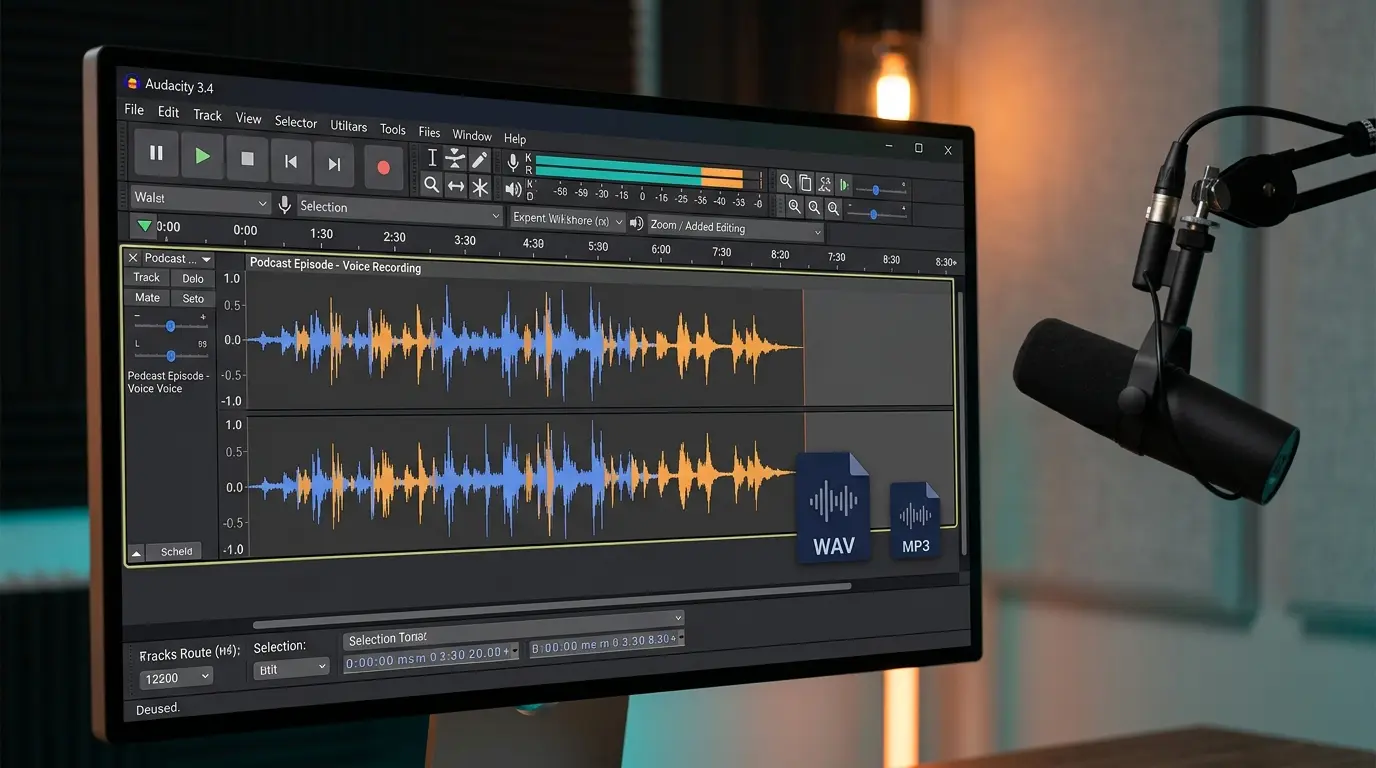
<!-- Meta Title: Best Audio Format for Podcast Editing in Audacity --> <!-- Meta Description: Which audio format works best for podcast editing in Audacity? WAV, MP3, FLAC, OGG — here's what to record in, edit with, and export to for every situation. --> <!-- Suggested URL Slug: /blogs/best-audio-format-podcast-audacity/ -->
Choosing the best audio format for podcast editing in Audacity is one of those decisions that seems small until it isn't. Pick the wrong format during recording and you're stuck with compression artifacts baked into your voice. Export in the wrong format and your hosting platform rejects the upload — or, worse, it accepts it but your listeners hear muffled audio through their earbuds on the morning commute.
Audacity supports a surprisingly long list of formats: WAV, MP3, FLAC, OGG Vorbis, AIFF, M4A/AAC (with the FFmpeg library installed), and a handful of others. But support and suitability aren't the same thing. Here's what actually matters at each stage of a podcast workflow, with specific settings instead of vague advice.
The Short Answer (Then the Long One)
Record and edit in WAV. Export the final episode as MP3. That's the rule of thumb most experienced podcasters follow, and it's the right one about 90% of the time. But the reasoning behind it matters more than the rule itself, because your specific situation — solo show vs. multi-host, music-heavy vs. interview-based, weekly release vs. daily — changes the calculation.
Why WAV Is the Best Format for Editing Podcasts in Audacity
WAV (Waveform Audio File Format) is uncompressed PCM audio. When Audacity records directly into WAV, it captures your microphone signal with zero data loss — every sample, every frequency, every tiny breath and room tone detail. Nothing gets thrown away.
This matters for editing because Audacity is a destructive editor. When you cut a section, apply noise reduction, normalize volume, or compress dynamics, Audacity processes the actual audio data. If that data started as a lossy format like MP3, you're processing an already-degraded signal. Apply noise reduction to an MP3 and you're trying to separate noise from artifacts that the MP3 encoder already introduced. The results are never as clean.
Specific WAV Settings for Podcast Recording
When you start a new recording in Audacity, check these settings (under Edit > Preferences > Quality on Windows/Linux, or Audacity > Preferences > Quality on macOS):
Sample rate: 44,100 Hz. This is the standard for spoken audio and more than sufficient for the human voice, which tops out around 3–4 kHz for most speech and about 8 kHz for sibilance. Some podcasters record at 48,000 Hz because that's the video standard — useful if your podcast has a video version on YouTube. Either rate works fine. Don't go higher than 48kHz for voice; it wastes disk space for zero audible benefit.
Bit depth: 16-bit. This gives you 96 dB of dynamic range, which is more than enough for speech. The difference between a whisper and a shout is roughly 40–50 dB. A 16-bit recording handles that with enormous headroom to spare. Some guides recommend 24-bit for podcasting, and it won't hurt anything, but for voice-only content the extra dynamic range goes entirely unused. A 1-hour mono 16-bit/44.1kHz WAV file runs about 317 MB. At 24-bit, that same hour is about 476 MB. If storage isn't a concern, 24-bit is fine — just don't expect to hear a difference. For a deeper dive on this, our 16-bit vs 24-bit audio breakdown covers the technical details.
Channels: Mono. Unless you're doing a stereo podcast with deliberate spatial effects (rare), record each voice as a mono track. It halves your file size and avoids the awkward situation where one host is panned left and the other panned right because the recording interface sent them to separate stereo channels.
What About Recording Directly to MP3?
You technically can. Audacity supports MP3 recording through the LAME encoder. But here's what happens when you do it:
Your microphone captures audio. Audacity encodes it to MP3 in real time, which involves a psychoacoustic model deciding which frequencies and details to discard. You then edit that MP3 — cutting, splicing, adding effects. When you export the finished episode as MP3 again, the encoder runs a second time, making a second round of decisions about what to throw away. This is called generational loss, and it's cumulative.
A single generation of high-bitrate MP3 (320 kbps) sounds fine to most ears. Two generations start to sound slightly hollow, especially in the 12–16 kHz range where MP3 encoders get aggressive. On a voice-only podcast played through phone speakers, you might not notice. On a music-heavy show played through decent headphones, you will.
The real cost isn't dramatic quality collapse — it's the loss of editing flexibility. Noise reduction works worse. EQ adjustments are less precise. Compression introduces more pumping artifacts. These are subtle differences individually, but they add up across a full production chain.
Record to WAV. Edit in WAV. Convert to MP3 only once, at the very end. One generation of lossy encoding is fine. Two is avoidable.
The Export Decision: MP3 vs. Everything Else
When your episode is edited and mastered, you need to export it in a format your podcast host accepts — and that your listeners' devices can actually play.
MP3 (the default choice)
Every podcast host on Earth accepts MP3. Every phone, car stereo, smart speaker, and web browser plays it. Apple Podcasts, Spotify, Google Podcasts, Pocket Casts, Overcast — all expect MP3. It's the universal format for a reason.
Recommended export settings:
Go to File > Export Audio, select MP3, and use these values:
- Bit rate mode: Constant (CBR)
- Quality: 128 kbps for mono voice-only shows, 192 kbps if your podcast includes music segments
- Channel mode: Joint Stereo if exporting in stereo, or Force Export to Mono
Why 128 kbps and not 320? Because podcast audio is almost entirely speech. The human voice doesn't contain the complex harmonic information that makes high-bitrate encoding matter for music. At 128 kbps mono, a 1-hour episode produces a file around 57 MB. At 320 kbps stereo, that same hour balloons to about 144 MB — and your listeners won't hear a difference on voice content. Their bandwidth will notice, though, especially on mobile data.
Honestly, for a talk-only interview show, you could drop to 96 kbps mono and most listeners wouldn't complain. But 128 kbps is the sweet spot where quality is indistinguishable from higher rates for speech, and file sizes stay reasonable. If you're curious about how MP3 compression compares to uncompressed audio in general, we've covered WAV vs MP3 in detail.
AAC/M4A (the better codec nobody fully uses yet)
AAC is technically superior to MP3 at the same bitrate — it produces cleaner audio at 96 kbps than MP3 does at 128 kbps. Apple Podcasts supports M4A natively, and most modern players handle it fine.
The catch: Audacity doesn't export AAC out of the box. You need to install the FFmpeg library separately (Audacity's website has instructions per OS). Once installed, you can export as M4A through File > Export Audio > M4A (AAC) Files. Use 96–128 kbps for spoken content.
The bigger catch: some older podcast apps and directories don't fully support AAC feeds. If you're distributing through a major host like Buzzsprout, Transistor, or Podbean, check their format requirements. Most accept both MP3 and M4A now, but MP3 remains the safer bet for maximum compatibility.
OGG Vorbis
Audacity loves OGG Vorbis — it's the open-source darling, built right in with no extra libraries needed. Quality-wise, OGG at 128 kbps is roughly comparable to MP3 at 160 kbps. Not bad.
The problem is device support. Most Android devices play OGG fine. iOS doesn't support it natively. Many podcast apps won't accept OGG files in RSS feeds. Unless you're distributing exclusively through a platform that supports it (like some self-hosted setups), OGG isn't practical for podcast distribution. Great codec, wrong ecosystem.
FLAC
FLAC gives you lossless compression — identical quality to WAV at about 50–60% of the file size. A 1-hour mono FLAC file might be around 190 MB versus 317 MB for WAV. That's meaningful if you're archiving your raw edited masters. We've written a full WAV vs FLAC comparison if you're weighing them for other use cases.
For distribution, though, FLAC is impractical. File sizes are too large for listeners to download on mobile, and many podcast apps don't support it. Use FLAC for archival. Use MP3 for distribution.
The Format Workflow for Podcast Production in Audacity
Here's how the entire pipeline should look, start to finish:
- Record in WAV (16-bit, 44.1kHz, mono)
- Save your Audacity project (.aup3) — this preserves your edit history, undo stack, and all tracks
- Edit everything while the project is still in lossless WAV internally
- Export the finished episode as MP3 (128 kbps CBR, mono) for distribution
- Optionally export a FLAC or WAV archive of the final master for safekeeping
That's five steps. The key insight is that Audacity's internal project format (.aup3) already stores audio as uncompressed PCM, so as long as you don't import lossy files into your project, every edit you make operates on lossless data.
What About Audio You're Importing Into Your Podcast?
This is where it gets interesting. Interview recordings from remote guests often arrive as MP3s from Zoom, Riverside, or SquadCast. Music clips or sound effects might come from YouTube or a stock library in various formats.
If a guest's recording is already MP3, you can't undo that compression. Import it as-is and work with what you've got. Don't convert it to WAV thinking that "upgrades" the quality — it just makes the file bigger without recovering any lost data.
But if you're pulling audio from YouTube — say, a clip for fair-use commentary, or your own video's audio track — you want to start with the highest quality possible. Converting that audio to WAV through YTtoWAV.org gives you an uncompressed file to work with in Audacity. One less generation of lossy encoding in your chain.
For sound effects and music beds, aim for WAV or FLAC source files when available. Most premium sound libraries (Epidemic Sound, Artlist, Soundstripe) offer WAV downloads. Free libraries like Freesound.org often have both WAV and OGG options. Always grab the WAV version.
Audacity Format Settings People Get Wrong
A few specific mistakes come up constantly in podcast communities:
Exporting at 320 kbps "because higher is better." For speech, anything above 192 kbps is wasted bandwidth. You're not distributing a music album. Your listeners are playing this through AirPods on a subway. 128 kbps mono is genuinely the right choice for most podcasts.
Using VBR (variable bitrate) for podcast MP3s. VBR produces slightly smaller files and can sound marginally better at a given average bitrate. But some podcast apps and players handle VBR timestamps poorly, which causes seeking to jump to the wrong position. Stick with CBR for podcasts. The tiny file size savings from VBR isn't worth broken chapter markers and unreliable scrubbing.
Recording at 96kHz/32-bit "for maximum quality." A 1-hour mono recording at 96kHz/32-bit produces a WAV file around 1.3 GB. Your hard drive fills up fast, and Audacity's processing slows down proportionally. For voice, there's no audible quality gain above 44.1kHz/16-bit. The sample rate debate is worth understanding, but the short version is: 44.1kHz captures frequencies up to 22 kHz, which is above human hearing range. Overkill for speech.
Not setting a project sample rate before importing audio. If your Audacity project is set to 44.1kHz and you import a 48kHz WAV file, Audacity resamples it on import. This is usually fine, but it's better to match rates from the start. Set your project rate in the bottom-left corner of the Audacity window before you start dragging files in.
FAQ
What is the best audio format to record a podcast in Audacity?
WAV (16-bit, 44,100 Hz, mono) is the best format for recording podcasts in Audacity. It captures uncompressed audio, giving you maximum editing flexibility and clean results from noise reduction, EQ, and compression. A 1-hour mono WAV at these settings is about 317 MB — large but manageable on modern drives.
Should I export my podcast as MP3 or WAV?
Export as MP3 for distribution to podcast platforms. Use 128 kbps CBR mono for voice-only shows or 192 kbps for episodes with music. Keep a WAV or FLAC copy as an archive of your finished master. Distributing WAV files directly isn't practical — the files are too large and most podcast apps don't expect them.
Does recording in MP3 hurt my podcast quality?
Yes, subtly. Recording in MP3 means the audio is compressed once during recording, then compressed again when you export the final episode. This double encoding (generational loss) degrades quality, especially in the high-frequency range. It also makes noise reduction and EQ processing less effective. Record in WAV and convert to MP3 only once, at the end.
Can Audacity export AAC/M4A files for podcasts?
Not by default. You need to install the FFmpeg library separately (available free from Audacity's website). Once installed, Audacity can export M4A (AAC) files, which offer better quality than MP3 at the same bitrate. However, MP3 remains the safer choice for podcast distribution due to broader compatibility across all podcast apps and directories.
Related Articles
- YouTube to WAV Converter for Podcasters: Extract Interview Audio [2026] — interview audio extraction and podcast workflow
- How to Repurpose YouTube Videos Into Podcast Episodes — complete repurposing workflow from video to podcast
- WAV Files for Adobe Audition: The Complete Workflow From Source to Final Export — source-to-export workflow for Adobe Audition
- MP3 vs WAV vs FLAC vs AAC: Audio Formats Compared for Every Use Case — MP3 vs WAV vs FLAC vs AAC for every use case
Related Articles
Keep reading — these posts cover similar topics you might find useful.
WAV Audio Format: Everything You Need to Know [Complete 2026 Guide]
The definitive guide to the WAV audio format — history, RIFF headers, PCM encoding, bit depth, sample rates, pros and...
What Is Opus Audio? YouTube's Hidden Codec Explained
The opus audio format powers every YouTube video you watch. Here's what it is, why it replaced Vorbis, and what happe...
WAV vs MP3 vs FLAC: Which Audio Format Should You Use? [2026 Guide]
WAV vs MP3 vs FLAC — a definitive comparison of quality, file size, bit depth, sample rates, and real-world use cases...